
Native macOS video surveillance

See every camera. Keep every moment.

Secure Cam turns your Mac into a focused CCTV workstation—with RTSP and ONVIF discovery, multi-camera live view, PTZ control, reliable background recording, schedules, and optional Secure Cam Cloud access.

RTSP + ONVIF Native Swift app 1 GB cloud storage included
Secure Cam app icon
Secure CamVideo Surveillance
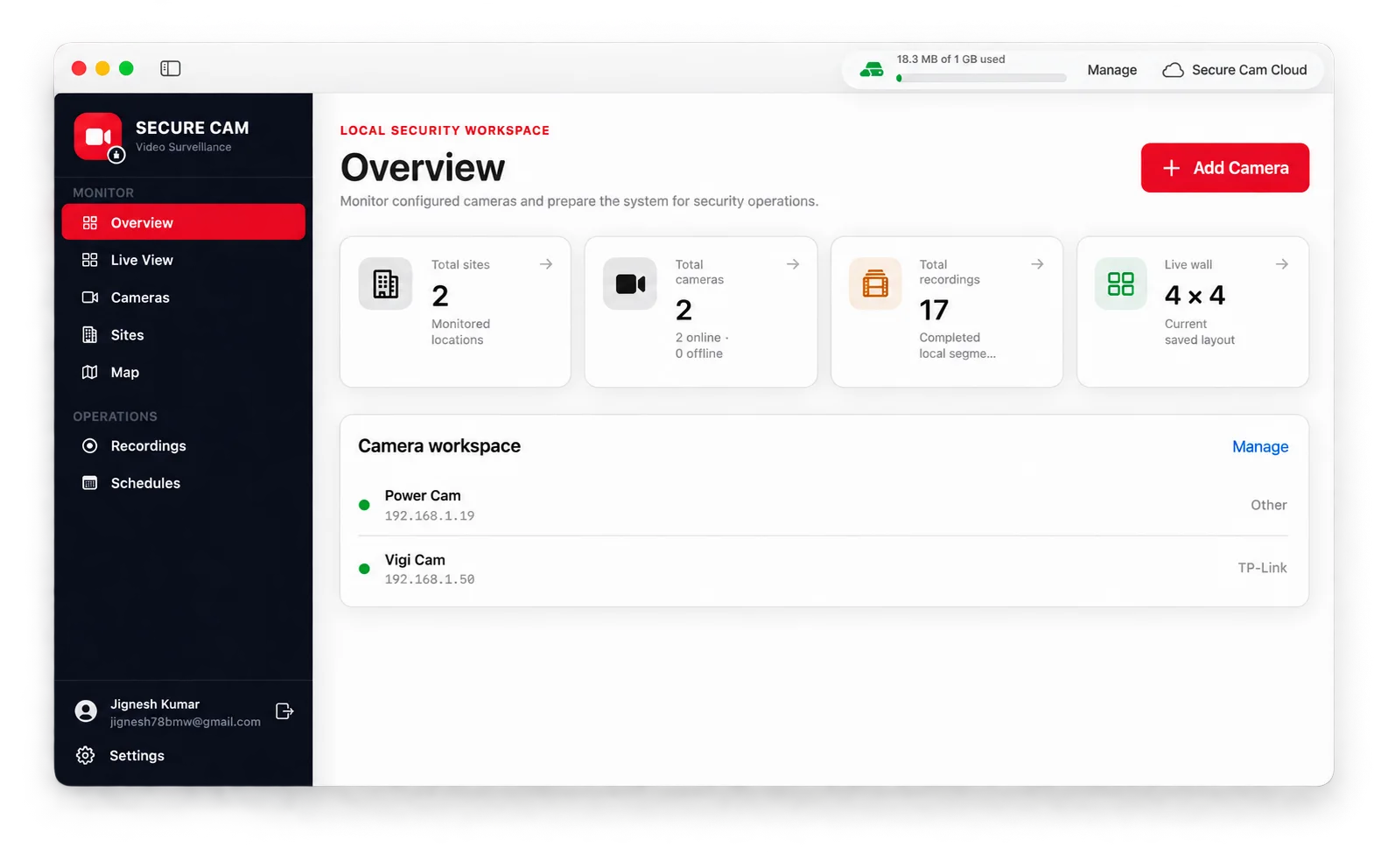
Secure Cam macOS overview showing sites, cameras, recordings, and live wall status
One operating view

Local control meets cloud visibility.

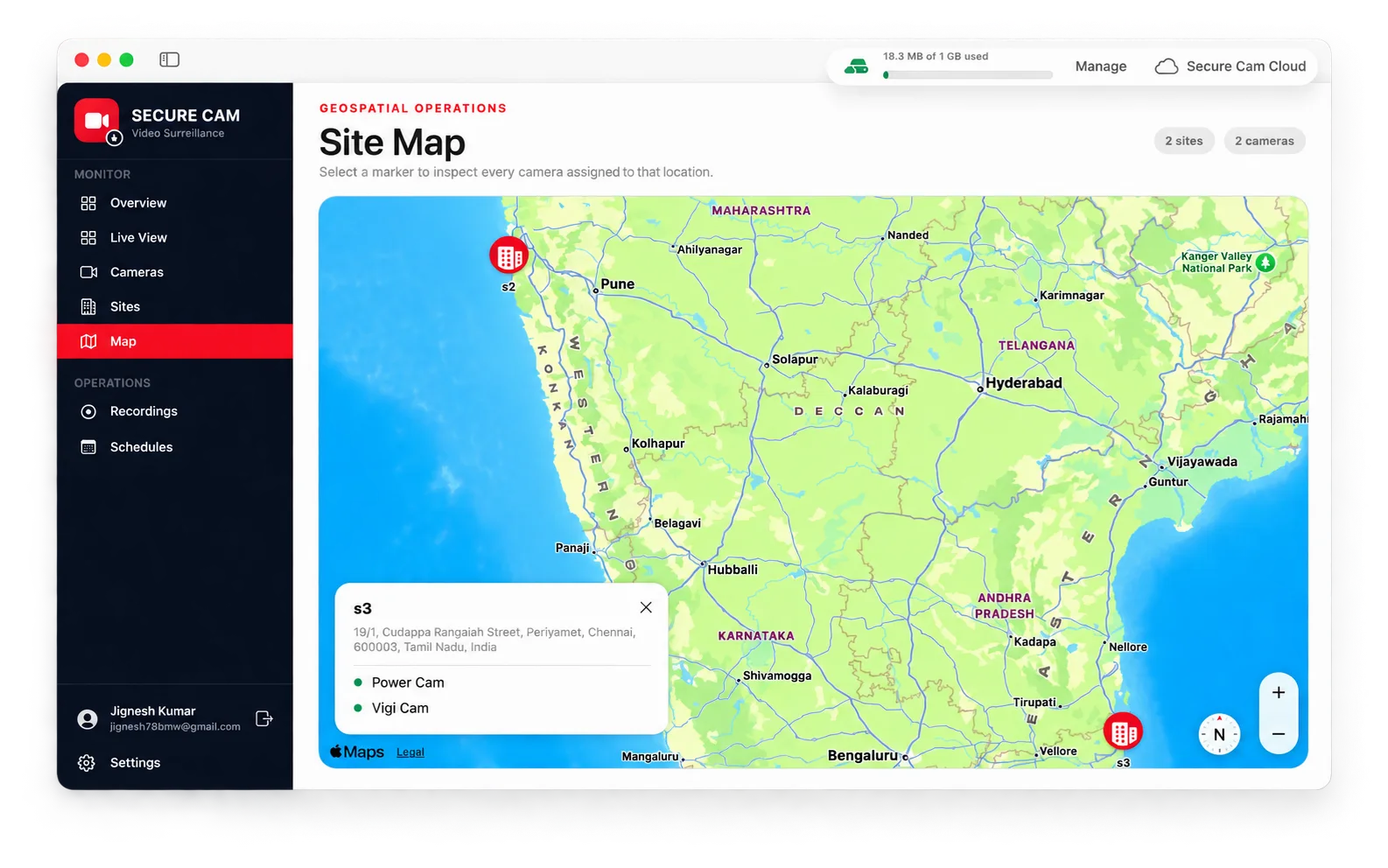
Monitor the cameras on your local network without giving up the operational tools a growing site needs. Secure Cam keeps live viewing and recording close to the camera, then adds account-based sites, storage, and evidence access through Secure Cam Cloud.

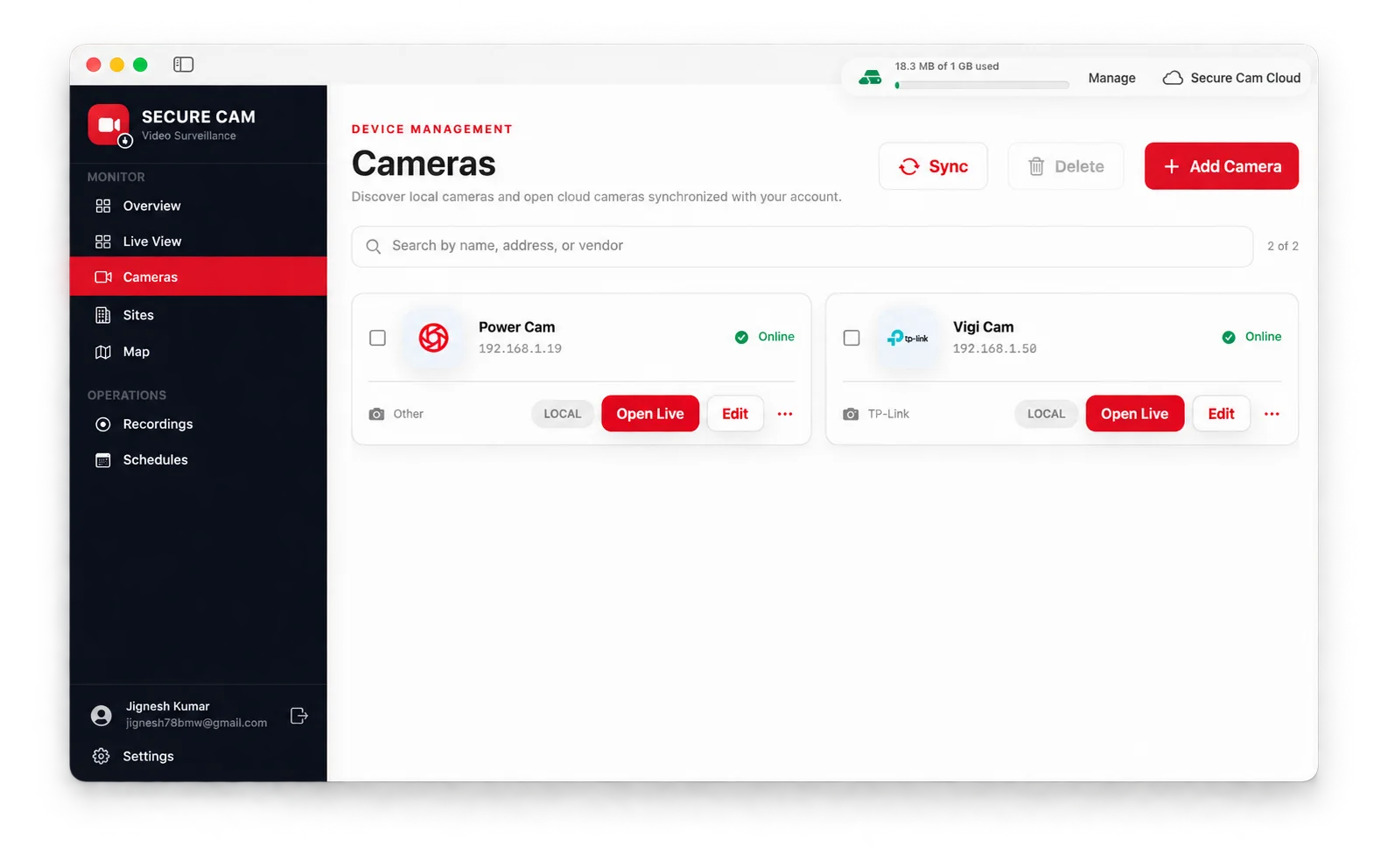
DiscoverFind ONVIF cameras and configure RTSP streams with brand-aware defaults.
MonitorBuild a flexible live wall and open individual cameras with PTZ controls.
RecordCapture manual, continuous, or scheduled video in manageable segments.
SynchronizeMove selected recording evidence into private cloud storage when required.
The Mac is your command centre

Purpose-built for real camera operations.

Every primary workflow has its own focused screen—so an operator can move from a wall of live feeds to a camera, recording, site, or schedule without losing context.

01 · Live monitoring

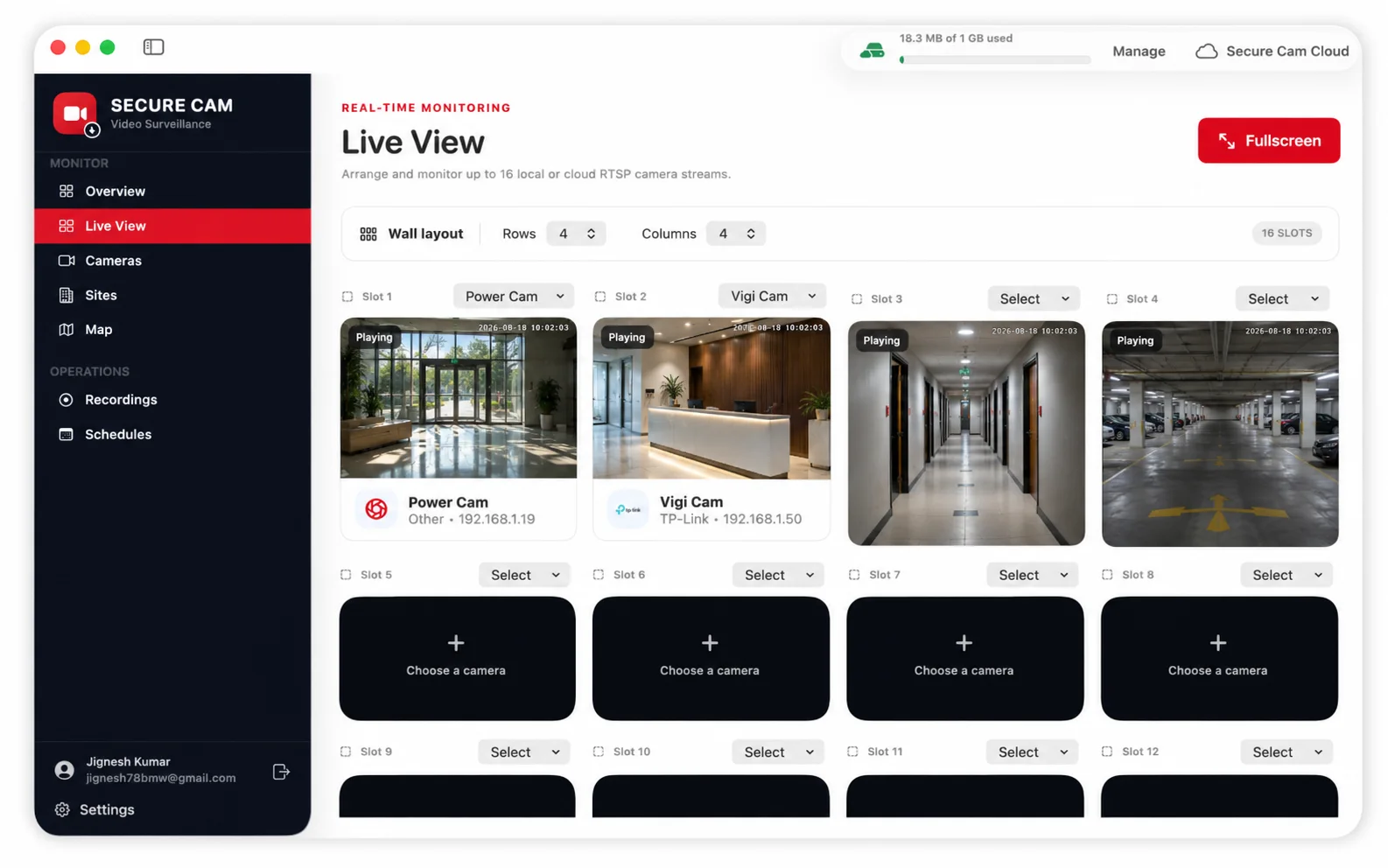
A live wall that adapts to the job.

Choose rows and columns, assign a camera to each slot, and switch the wall to fullscreen for a clean control-room view.

  • Configurable layouts up to 4 × 4
  • Main and sub-stream selection
  • Fast per-slot camera assignment
Secure Cam live wall with several IP camera streams
02 · Camera control

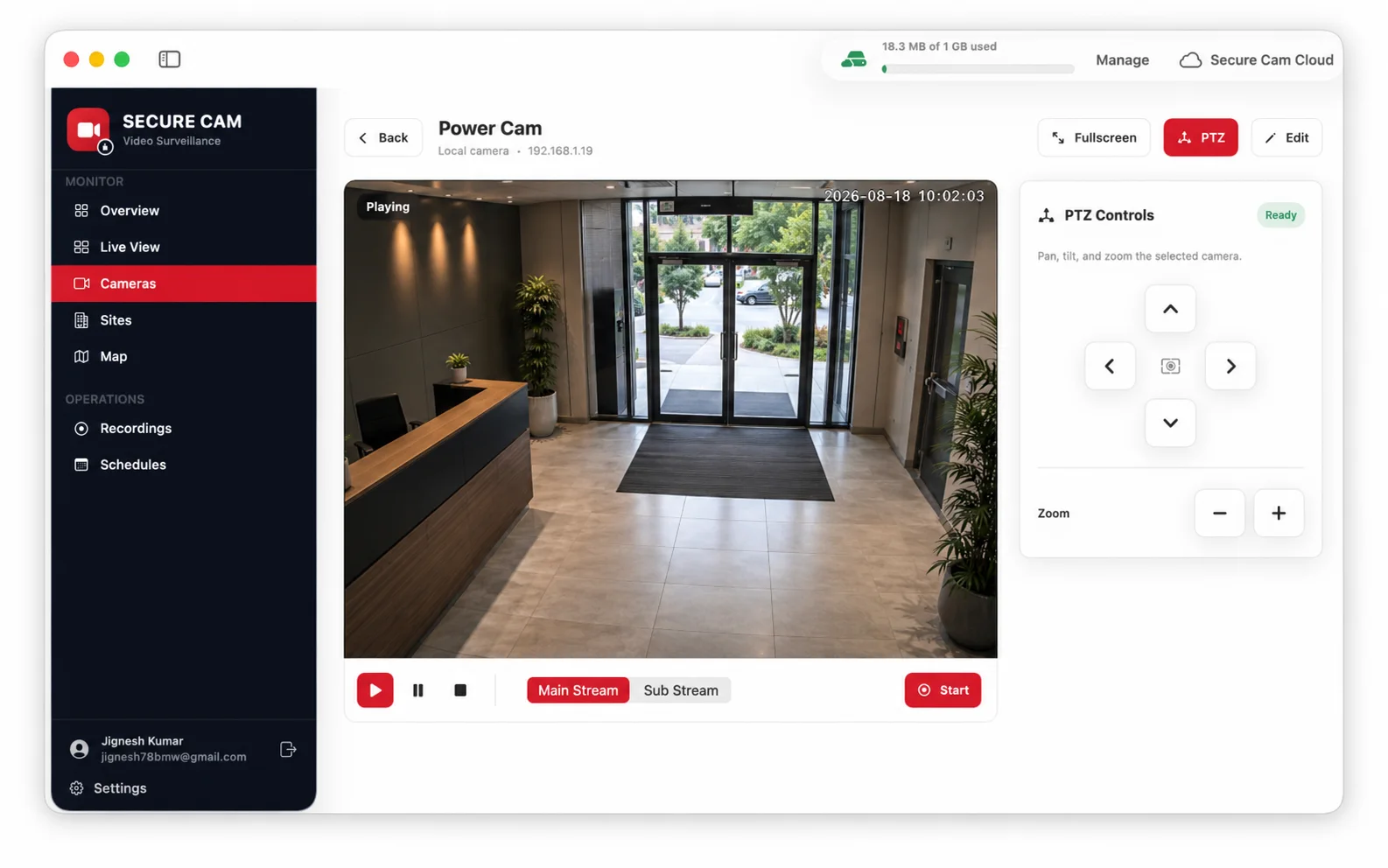
Watch, record, and control PTZ from one screen.

Open a camera for focused viewing, switch stream quality, start a recording, enter fullscreen, or operate supported pan, tilt, and zoom controls.

  • Playback and recording controls
  • ONVIF PTZ navigation and zoom
  • Main and sub-stream switching
Secure Cam camera detail with live video and PTZ controls
03 · Recording evidence

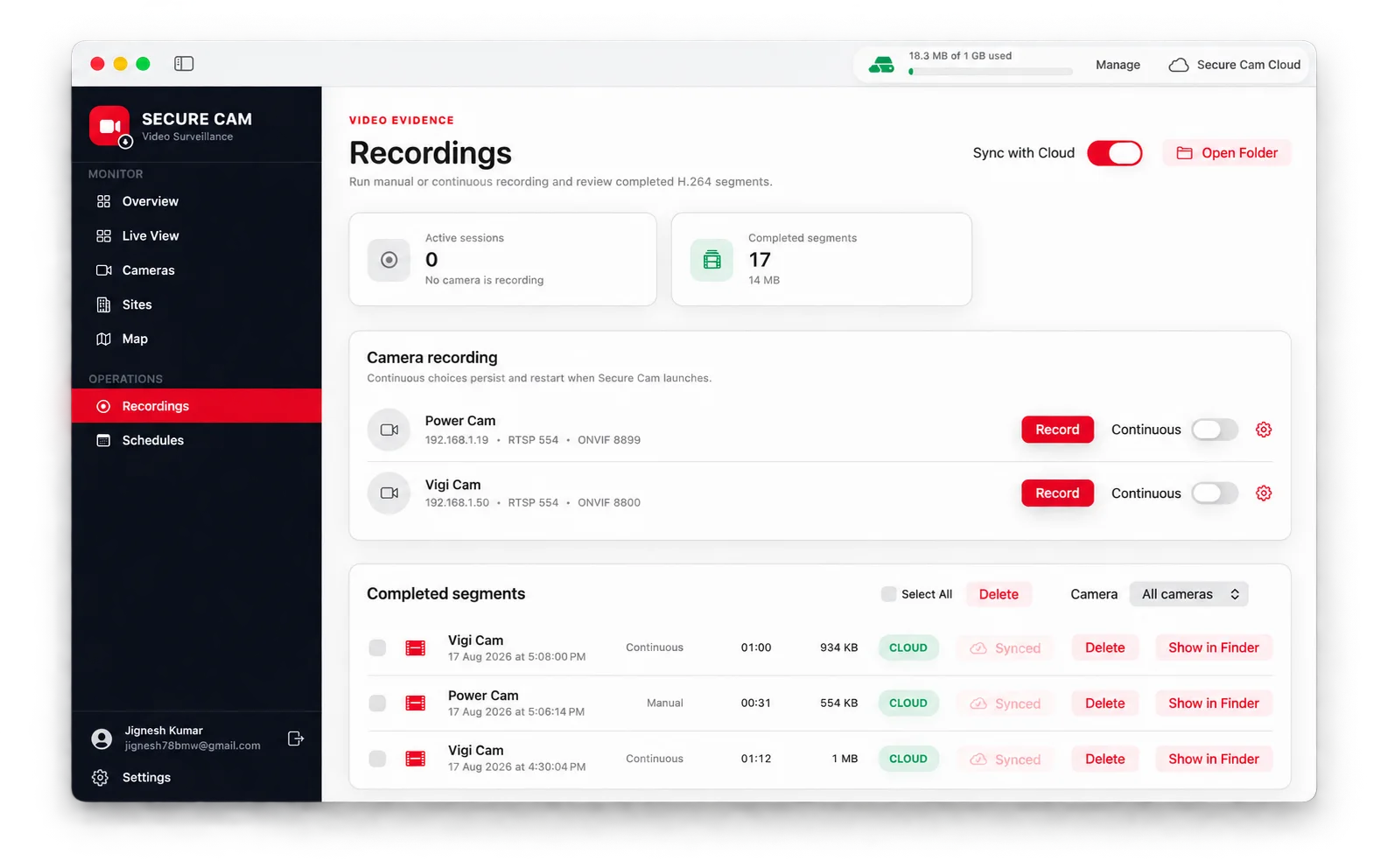
Recording that continues beyond the window.

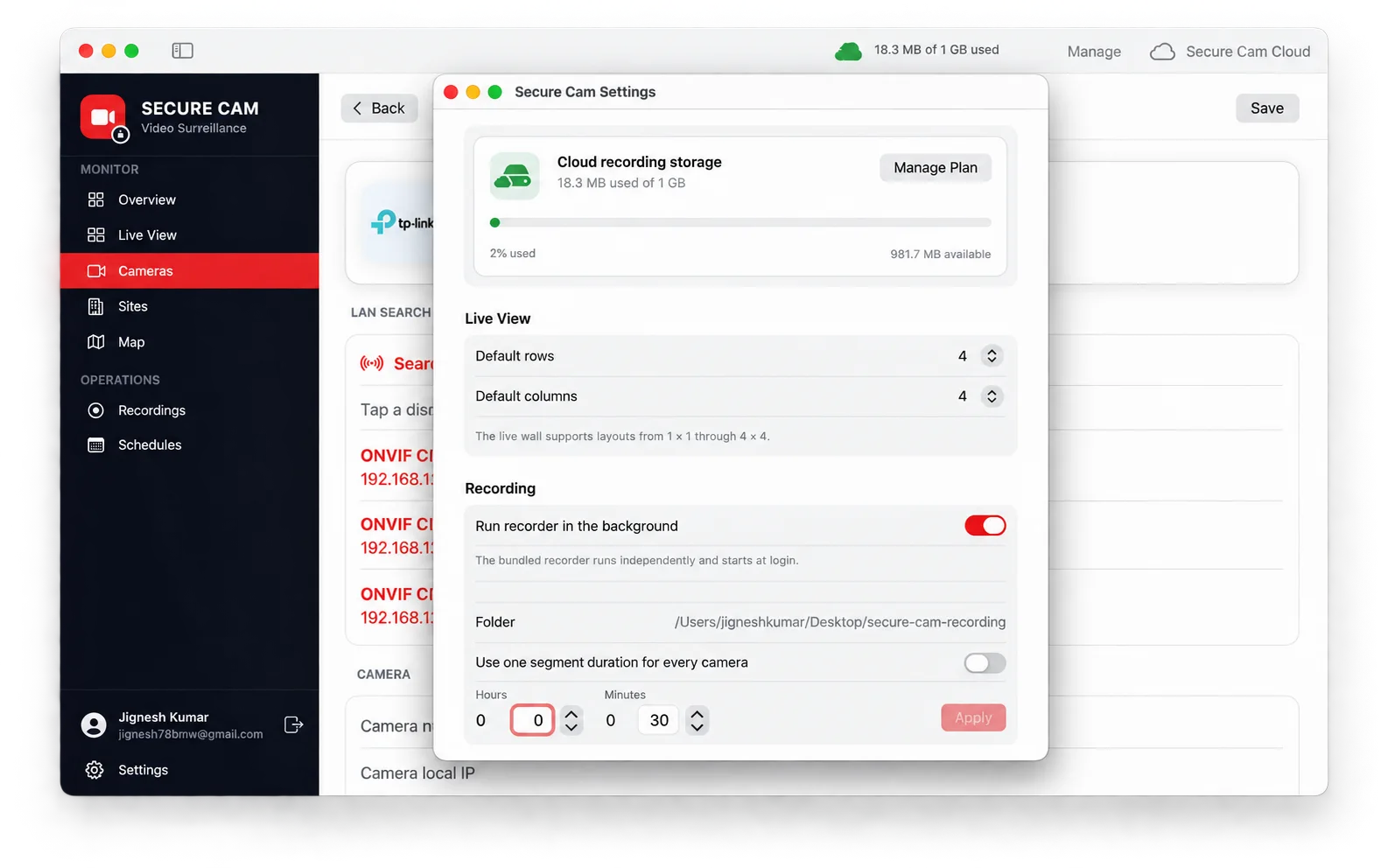
Run the bundled recorder in the background, define segment duration, start a manual capture, or leave a camera running continuously. Completed segments stay organized and can be synchronized to the cloud.

  • Bundled background recorder
  • Manual and continuous modes
  • Cloud sync with visible storage usage
Secure Cam recording controls and completed video segments
04 · Automation

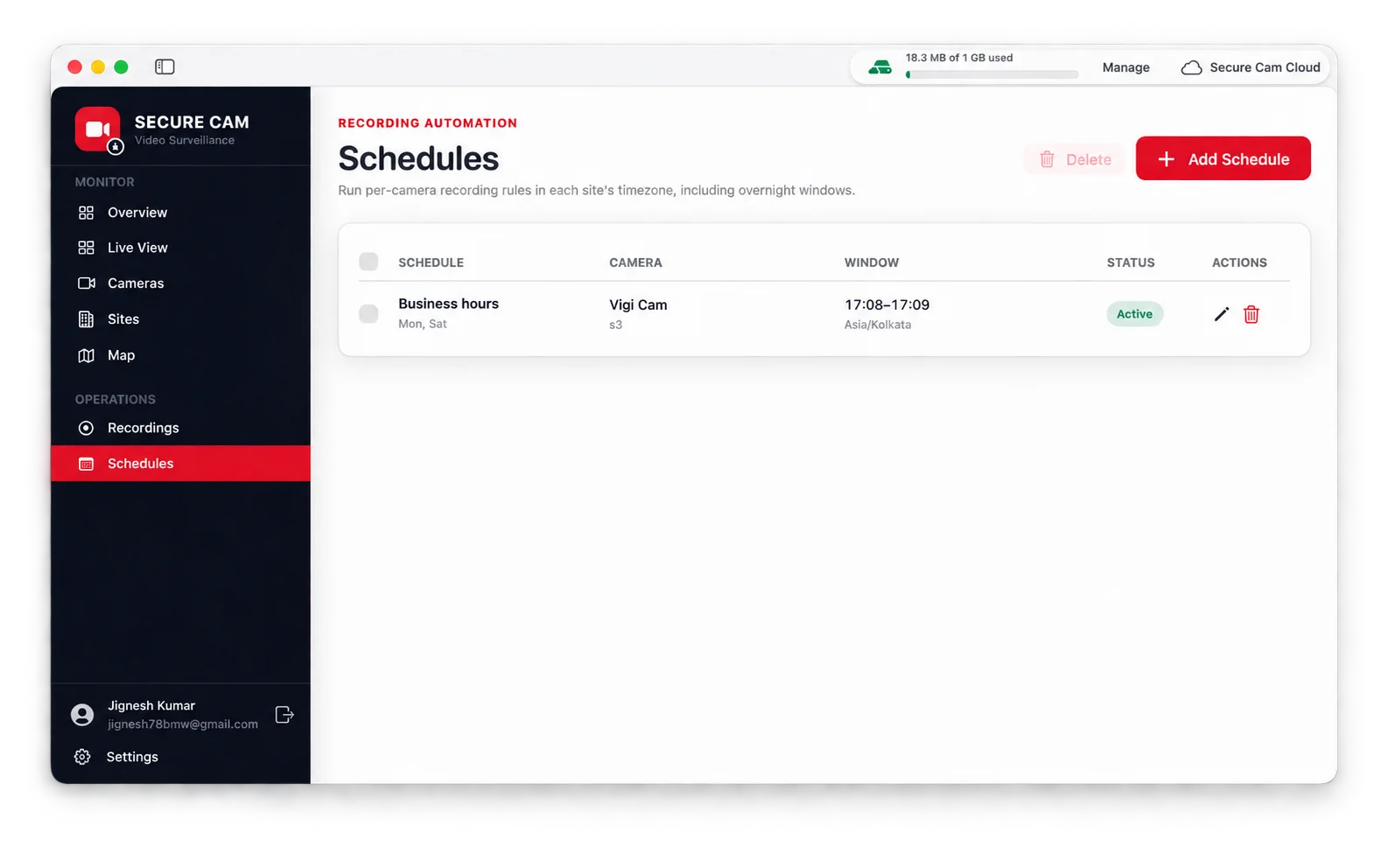
Schedules that follow each site’s time.

Create camera-specific recording windows for selected days and timezones, including overnight operations. Enable or pause a rule without deleting its setup.

  • Per-camera recording rules
  • Day, time, and timezone controls
  • Background execution at schedule boundaries
Secure Cam recording schedules list
Secure Cam Cloud

Your evidence, available beyond the Mac.

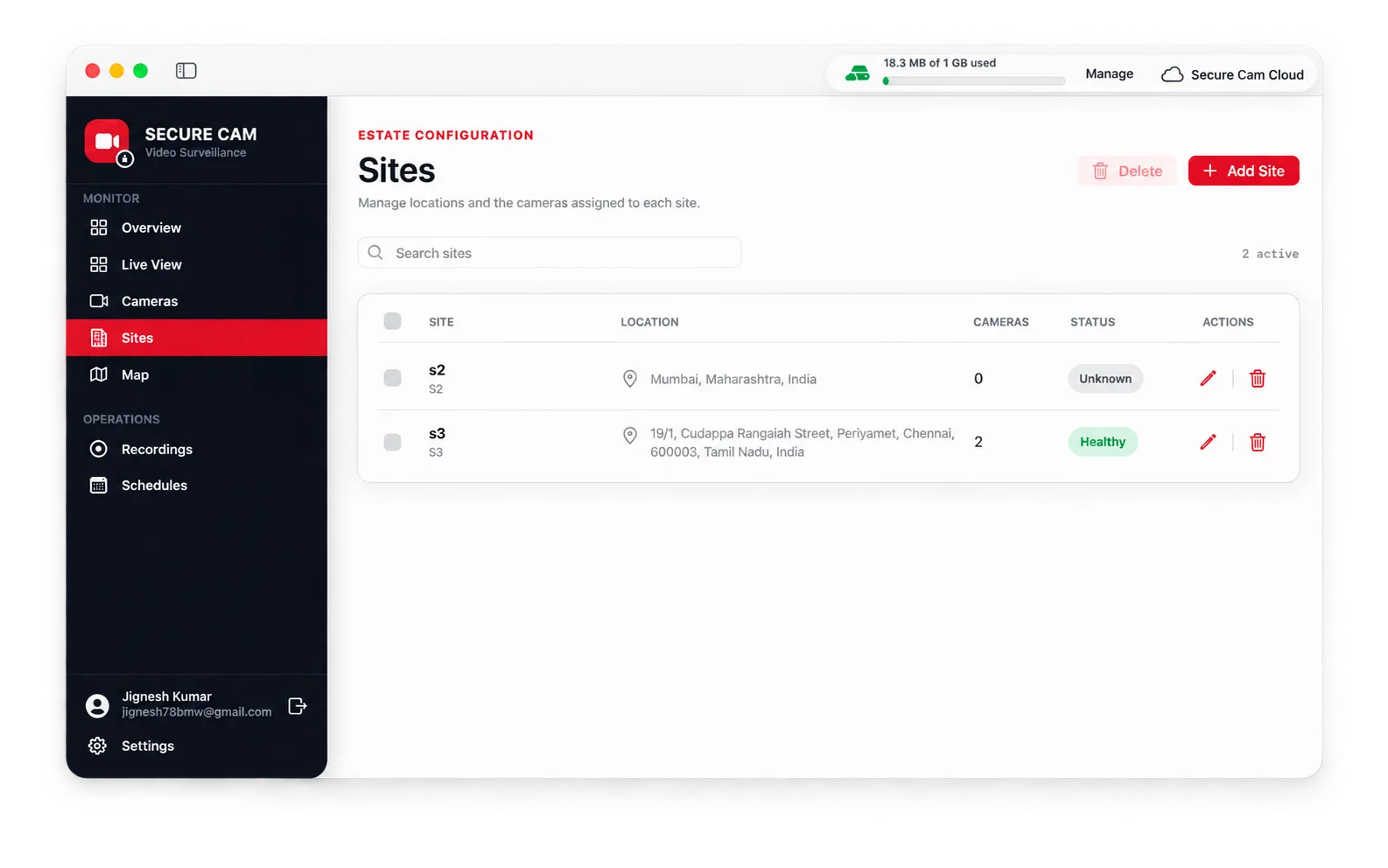
Sign in with the same Secure Cam account to register cameras, organize sites, monitor storage consumption, and make synchronized recording evidence available through the web console.

Selective syncUpload completed segments automatically or one at a time.
Storage plansStart with 1 GB included and manage capacity as recording needs grow.
Account controlKeep cameras and operational data attached to the right organization.
Private accessCloud evidence stays behind authenticated account access.
Secure Cam cloud storage usage and background recorder settings
Guided onboarding

From camera brand to live video.

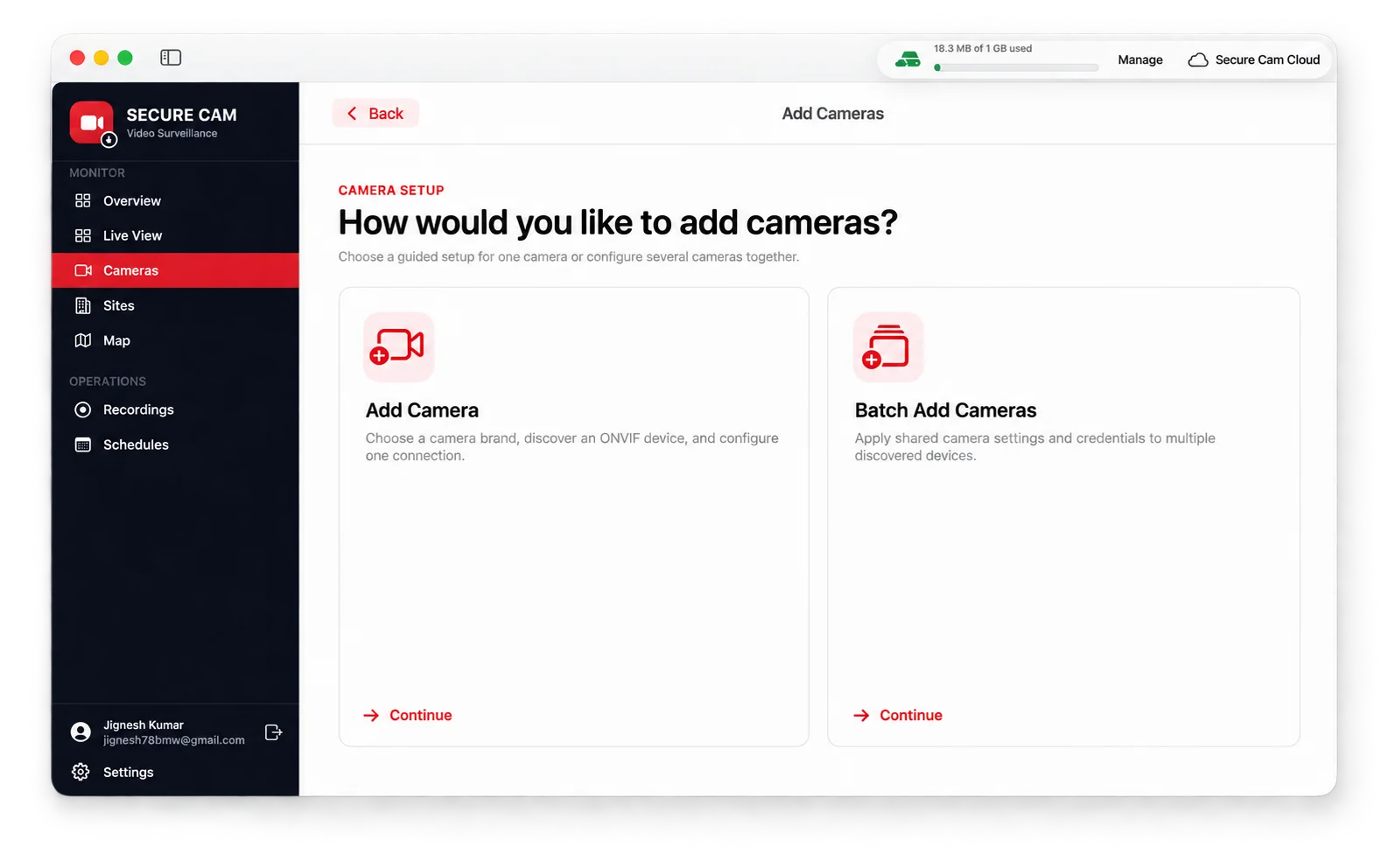
Add one camera, configure several discovered devices together, or start with sensible ONVIF defaults for common manufacturers.

Secure Cam single camera and batch camera setup options
Step 1

Choose a setup path

Add one camera or use batch setup for several devices sharing common settings.

Secure Cam supported camera brand presets
Step 2

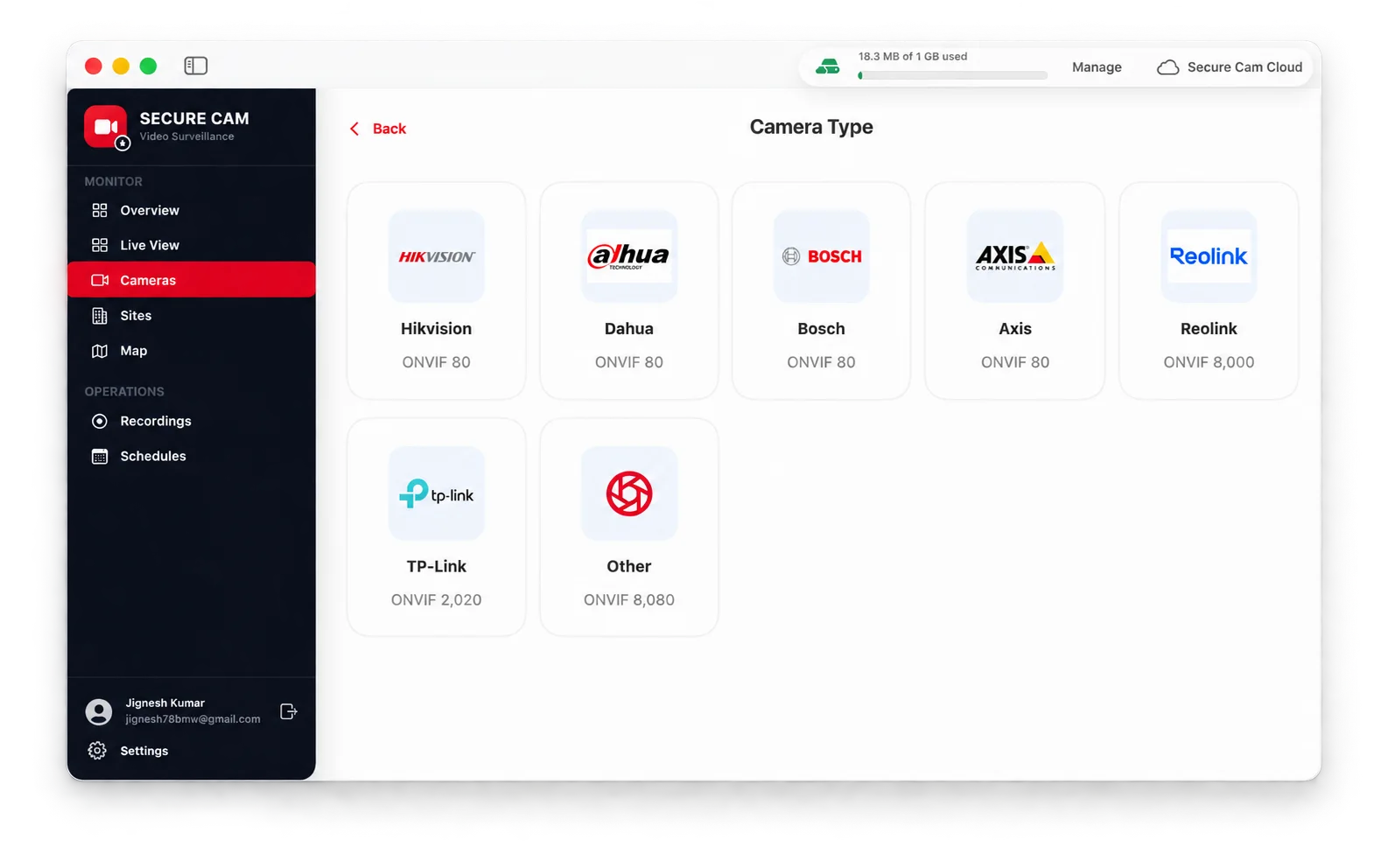
Select a camera preset

Start with defaults for Hikvision, Dahua, Bosch, Axis, Reolink, TP-Link, or another RTSP camera.

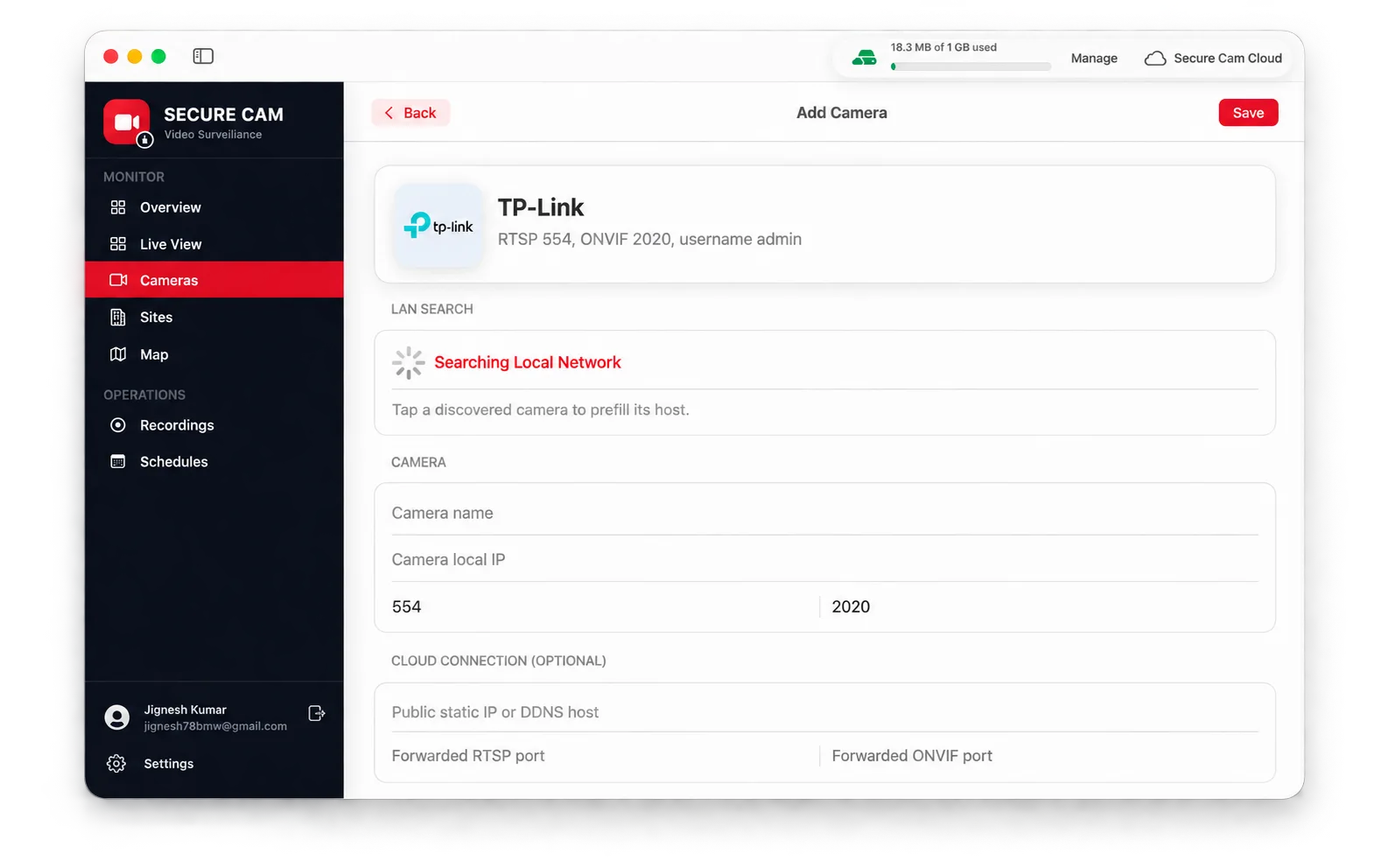
Secure Cam ONVIF local network search and camera connection form
Step 3

Discover and connect

Search the LAN with ONVIF, confirm ports and streams, then save the camera to the account.

Turn this Mac into a serious surveillance workstation.

Download Secure Cam from the Mac App Store, connect your RTSP or ONVIF cameras, and begin with included cloud recording storage.